
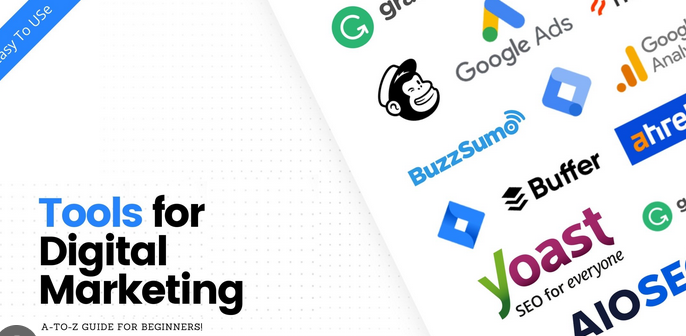
Social media marketing doesn’t have to drain your budget. With the right combination of free tools you can plan, create, publish, analyze, and optimize professional campaigns — without paying for expensive subscriptions. Below is a practical, detailed guide to the best free tools across every stage of the social media workflow. Each section explains what the tool does, how to use it effectively, and quick tips to squeeze maximum value from the free tier.
1. Content planning & collaboration
Google Sheets (or Excel Online)
Why it’s great: flexible, shareable, and free.
How to use it: build a content calendar with columns for publish date, network, copy, visuals, links, UTM tags, status, and owner. Use color-coding for campaign types and filters to view by platform or owner.
Pro tip: create templates for weekly planning, and add basic formulas to track post frequency per platform.
Notion / Trello
Why it’s great: lightweight project management and content workflows.
How to use it: Notion provides databases and templates for content pipelines; Trello’s card system is perfect for editorial stages (Idea → Draft → Ready → Published). Attach assets, checklists, and deadlines.
Pro tip: add rules/automations (Trello Butler or Notion templates) to move cards automatically when deadlines approach.
Asana (free tier)
Why it’s great: simple tasks + timeline view for small teams.
How to use it: create projects per campaign, assign tasks to designers/writers, and set dependencies for approvals.
Pro tip: use recurring tasks for weekly posts and set up custom fields for platform and content type.
2. Graphic design & visual content
Canva (Free)
Why it’s great: drag-and-drop editor, social templates sized for every platform.
How to use it: start with platform-specific templates (Instagram post, FB cover, story), replace images and text, export in PNG/JPG or MP4 for animated posts.
Pro tip: design a set of brand templates with consistent fonts and colors for quick reuse.
GIMP + Paint.NET (Free desktop alternatives)
Why it’s great: powerful image editing without cost.
How to use it: use GIMP for deeper edits like layer masks, background removal, and complex color corrections. Paint.NET offers fast basic editing.
Pro tip: learn one or two keyboard shortcuts (crop, transform, save for web) to speed up editing.
Unsplash / Pexels (free stock photos)
Why it’s great: high-quality, royalty-free images that improve post aesthetics.
How to use it: search for emotion- or theme-aligned images, then crop or overlay brand elements in Canva.
Pro tip: combine stock images with brand overlays (logo + color gradient) to keep visual identity consistent.
3. Video & short-form content
InShot / CapCut (mobile, free)
Why it’s great: powerful mobile video editing for Reels, Shorts, and TikToks.
How to use it: trim clips, add transitions, text overlays, and royalty-free music. Export optimized for vertical video.
Pro tip: create 3–4 short templates (intro, caption style, end card) to speed batch editing.
OBS Studio (desktop, free)
Why it’s great: record screen, webcams, and live streams — extremely customizable.
How to use it: set up scenes for tutorials, interviews, or product demos; capture at 1080p; use virtual cameras for video calls.
Pro tip: add lower-thirds and a simple stream overlay for branded videos.
Audacity (free audio editing)
Why it’s great: quick audio cleanup, noise removal, and basic mastering for video voiceovers or podcasts.
How to use it: normalize, remove background hiss, and export high-quality WAV or MP3.
Pro tip: use Audacity to polish spoken audio for captions and voiceovers — cleaner audio increases viewer retention.
4. Scheduling & publishing
Buffer (free tier)
Why it’s great: simple scheduler supporting multiple platforms; great for small teams.
How to use it: queue posts per platform, schedule at optimal times, and create posting schedules.
Pro tip: use Buffer’s browser extension to share links and images directly from the web.
Later (free tier)
Why it’s great: visual Instagram planner with drag-and-drop calendar, also supports other platforms.
How to use it: plan grid layout, set auto-post for supported post types, and save hashtags in groups for reuse.
Pro tip: use saved caption templates and first-comment scheduling to keep captions tidy.
TweetDeck (for X/Twitter)
Why it’s great: real-time timeline management and easy scheduling for X accounts.
How to use it: set up columns for mentions, lists, and scheduled tweets to monitor engagement and reply quickly.
Pro tip: create lists for industry influencers and customers to make engagement more intentional.
5. Analytics & reporting
Google Analytics & Looker Studio (formerly Data Studio)
Why it’s great: measure traffic driven by social posts and build custom visual reports.
How to use it: connect social campaign landing pages with UTM-tagged links, then pull metrics into Looker Studio for dashboards.
Pro tip: create a social performance dashboard with sessions, bounce rate, conversions, and top-performing campaigns.
Native platform analytics (Facebook/Meta Insights, Instagram Insights, YouTube Analytics, X Analytics)
Why it’s great: direct performance metrics from the platform — reach, impressions, saves, watch time.
How to use it: check reach vs. engagement, identify best posting times, and analyze content formats that drive conversions.
Pro tip: export monthly reports and compare month-over-month to spot trends.
SocialBlade / Free rank trackers
Why it’s great: quick follower growth tracking and benchmarking for YouTube, Instagram, and X.
How to use it: monitor follower spikes and dips, compare with competitors.
Pro tip: use follower growth charts to link content experiments to impact.
6. Social listening & hashtag research
Google Alerts
Why it’s great: free, simple brand monitoring via email alerts for keywords.
How to use it: set alerts for brand name, product names, or campaign hashtags to monitor mentions across the web.
Pro tip: include variations and common misspellings to catch more mentions.
Hashtag generators / Keyword tools (free versions)
Why it’s great: discover relevant hashtags and topic ideas.
How to use it: enter a base keyword to get related hashtags and volume insight; combine high-traffic and niche tags.
Pro tip: build 3 hashtag sets — broad, niche, and branded — and rotate them to avoid shadowban-like behavior.
Answer-the-public (limited free)
Why it’s great: reveals user questions and topic clusters that can inspire content.
How to use it: turn the questions into short video ideas, carousel posts, or FAQs.
Pro tip: make a content series addressing the most common “how” and “why” queries.
7. Link management & tracking
Bitly / TinyURL (free tiers)
Why it’s great: clean, short links for bios and captions; basic click tracking.
How to use it: create short links for campaign landing pages and track clicks to measure CTA performance.
Pro tip: use branded short domains if available; otherwise, use meaningful slugs to indicate campaign or platform.
Google’s Campaign URL Builder
Why it’s great: standardizes UTMs for reliable traffic attribution.
How to use it: add source, medium, and campaign tags; copy the generated URL into your scheduler or link shortener.
Pro tip: keep a shared UTM naming convention document to avoid inconsistent tagging across campaigns.
8. Content & caption ideas
HubSpot Blog Ideas Generator / Portent (free tools)
Why it’s great: quick prompts when you hit creative blocks.
How to use it: input a keyword to get headline and angle ideas that can be adapted into social posts.
Pro tip: combine headline ideas with answer-the-public queries to create high-value content.
ChatGPT (free or accessible versions)
Why it’s great: rapid caption drafting, content repurposing, and brainstorming.
How to use it: ask for a carousel outline, short video script, or 5 caption variations. Then edit to match brand voice.
Pro tip: always human-edit AI-generated copy for brand tone and accuracy.
9. Influencer discovery & outreach (free approaches)
Manual search & Instagram/X lists
Why it’s great: free, high-control method for finding micro-influencers.
How to use it: search relevant hashtags, check engagement rates (likes/comments ÷ followers), and build outreach lists in a spreadsheet.
Pro tip: prioritize engagement quality over follower count — micro-influencers often deliver higher ROI.
LinkedIn (free)
Why it’s great: find thought leaders, B2B creators, and professionals for partnerships.
How to use it: use search filters for industry and location; message or comment on posts before cold outreach for warmer engagement.
Pro tip: create a simple outreach template but personalize the first line to show you researched their content.
10. Productivity & batching
Notion templates & Google Calendar
Why it’s great: batching content creation improves consistency.
How to use it: block “creation days” in Google Calendar and store assets, scripts, and captions in Notion or Sheets.
Pro tip: set aside one day a week for content creation and another for analytics + optimization.
Zapier / Make (limited free automation)
Why it’s great: automate repetitive tasks like saving mentions to a spreadsheet or posting RSS content to social feeds.
How to use it: build simple zaps (e.g., Instagram posts → Google Drive) to reduce manual work.
Pro tip: keep automations simple — overly complex zaps are harder to maintain.
11. Community building & customer service
Facebook Groups / Telegram / WhatsApp (free platforms)
Why it’s great: build closer relationships and get direct user feedback.
How to use it: run exclusive Q&A sessions, release previews, and gather user-generated content.
Pro tip: use pinned posts and scheduled group events to keep engagement steady.
Gmail + Canned Responses / Help Scout alternatives
Why it’s great: quick replies and saved message templates for common queries.
How to use it: prepare templated replies for shipping questions, pricing, or product tutorials.
Pro tip: personalize templates with at least one sentence to avoid robotic responses.
12. Creative repurposing & content repackaging
Headliner (free tier) for audiograms
Why it’s great: turn podcast clips or spoken quotes into shareable audiograms with waveform visuals.
How to use it: upload audio, add subtitles, and export square or vertical videos for social platforms.
Pro tip: use strong clip hooks (first 5 seconds) and a caption that invites a reaction.
Canva + simple templates
Why it’s great: turn blog posts into carousels, pull quotes into image posts, and convert webinars into short clips.
How to use it: create a reusable slide template with consistent typography and colors to produce carousels rapidly.
Pro tip: keep carousels to 7–10 slides and make the first slide an irresistible hook.
13. Testing & optimization
A/B testing with native features
Why it’s great: many platforms let you test creatives or copy variations (some features are free).
How to use it: test two headlines, two thumbnails, or two caption styles and measure engagement, CTR, and saves.
Pro tip: change one variable at a time so you can attribute results.
Free heatmap alternatives & session replay trials
Why it’s great: understand how users from social channels behave on landing pages.
How to use it: combine click maps and Google Analytics behavior flow to optimize landing pages for social traffic.
Pro tip: focus on mobile UX since most social traffic is mobile-first.
14. Security & account management
LastPass / Bitwarden (free tiers)
Why it’s great: store passwords securely and share access with teammates.
How to use it: create strong, unique passwords for every account and use shared vaults for team logins.
Pro tip: enable two-factor authentication (2FA) across all social accounts for added security.
Final checklist: How to combine these tools into a workflow
-
Plan in Notion/Trello with a Google Sheets content calendar.
-
Create visuals in Canva; polish audio in Audacity; edit video in CapCut or InShot.
-
Schedule with Buffer or Later; use TweetDeck for real-time X management.
-
Shorten & track links with Bitly and UTM builder.
-
Monitor performance in native analytics and Google Analytics; build a Looker Studio dashboard for stakeholders.
-
Listen with Google Alerts; research content ideas with Answer-the-Public and headline generators.
-
Repurpose long content with Headliner and Canva carousels.
-
Automate small tasks with Zapier/Make and keep passwords safe in Bitwarden.
Closing tips to get the most from free tools
-
Standardize naming (UTMs, folders, and templates) so assets are easy to find.
-
Batch work — create multiple posts in one session to stay consistent.
-
Measure what matters — prioritize KPIs that align with business goals (leads, signups, sales), not just vanity metrics.
-
Keep a growth log — document experiments, hypotheses, and results; small learnings compound.
-
Invest time learning one tool deeply rather than using many tools shallowly. Mastering Canva templates or a single scheduler yields faster execution and consistent brand output.